Windows couldn’t automatically bind the IP protocol stack to the network adapter
In this case, the built-in troubleshooter gave an error instead of fixing the issue, which means we would have to fix it manually. It is believed that this error occurs after the user makes changes to the network settings of the computer. If you are facing this error, I suggest you go through the list of fixes and see which you want to try and in which order.Related Read: iMyFone Umate
1: Update Windows
The issue could be with the drivers as suggested in the error. To isolate this probability, you could update Windows and restart the system. Updating Windows, updates the drivers as well.
2: Update the drivers from the manufacturer’s website
Since, the error message specifies that the issue is with the drivers, before moving any further, we need to be sure that this cause is isolated. If a Windows Update does not fix the problem, trying re-installing the network adapters from the manufacturer’s website. Please contact the manufacturer for more information on the same.
3: Reset the Network Adapter settings
The Network Adapter settings might have changed any recently. To reset them to default, you could reset TCP/IP and see if that works for you.
4: Change a few Adapter settings
If resetting the Adapter settings does not work, you could try changing a few of them to the most recommended ones. The process would be as follows:
1] Press Win + X, and in the list that pops up, select Control Panel. Open the Network and Sharing Center. It might be under the category Network and internet.
2] Click Change Adapter Settings in the left pane. Right-click the adapter in use (Ethernet or Wi-Fi) and click on Properties.


In the list titles “The network uses the following items,” ensure that the following items checked, and uncheck all other options:
- Client for Microsoft Networks
- QoS packet scheduler
- File and Printer Sharing
- Internet Protocol v6
- Internet Protocol v4
- Link-Layer Topology Discovery Mapper I/O driver
- Link-Layer Topology Discovery Reminder.
5: Disable the IP Helper Service
1] Press Win + R and type “services.msc” in the Run window. Press Enter.
2] The list of services is arranged in alphabetical order. Scroll to IP Helper Service and right-click on it. Select Properties.
3] Set the startup type to “Disabled” and click Apply to save the settings.
4] Change the service status to Stop and save the settings by clicking on OK.
I am sure that something here will help you.
Forgot iPhone Passcode?
Part 1. If I Reset My iPhone What Will I Lose?
After encountering a major setback in your device and the only available solution is to reset, then you need to know that you will lose some data and files (if not all). However, different reset leads to different results.
There are different kinds of reset method, these methods determine the outcome of your device and answer the question: “If I reset my iPhone, will I lose everything?”. These methods include:
A Reset Through Settings on iPhone
This is a conventional method and it is very easy. It involves only your device and tapping a few buttons in order to restore the phone. In this method, there are 2 approaches to this;
- If you reset all settings, it will only be temporary and not all files or data will be lost. In fact, some junk and temp files i.e. it keeps your apps and data but will reset all personal preferences and network settings.
- If you erase all content and settings, it will delete all data on your iPhone, including songs, videos, images, etc. It is somewhat similar restoring back to factory settings.
B Reset Through iCloud and iTunes
One of the available methods Apple has put in place for iPhone users to reset their phones. It involves making a connection with a PC and logging into iCloud or launching iTunes respectively. This method is however complicated but resets through iTunes and iCloud will make you lose all your files and data; more like restoring back to factory settings. If you need to get back your data you may need to get help from some professional recovery tool.
Part 2. How to Restore iPhone after Reset via iTunes
When you reset iPhone with any of the method listed above, no doubt, some important files could be deleted or lost and you would want to restore them. In order to do this, you can restore iPhone from an iTunes backup if you have backed up before. Apple set up this method so the maximal use of iTunes can be put into action and one can be able to backup devices in case of future problems.
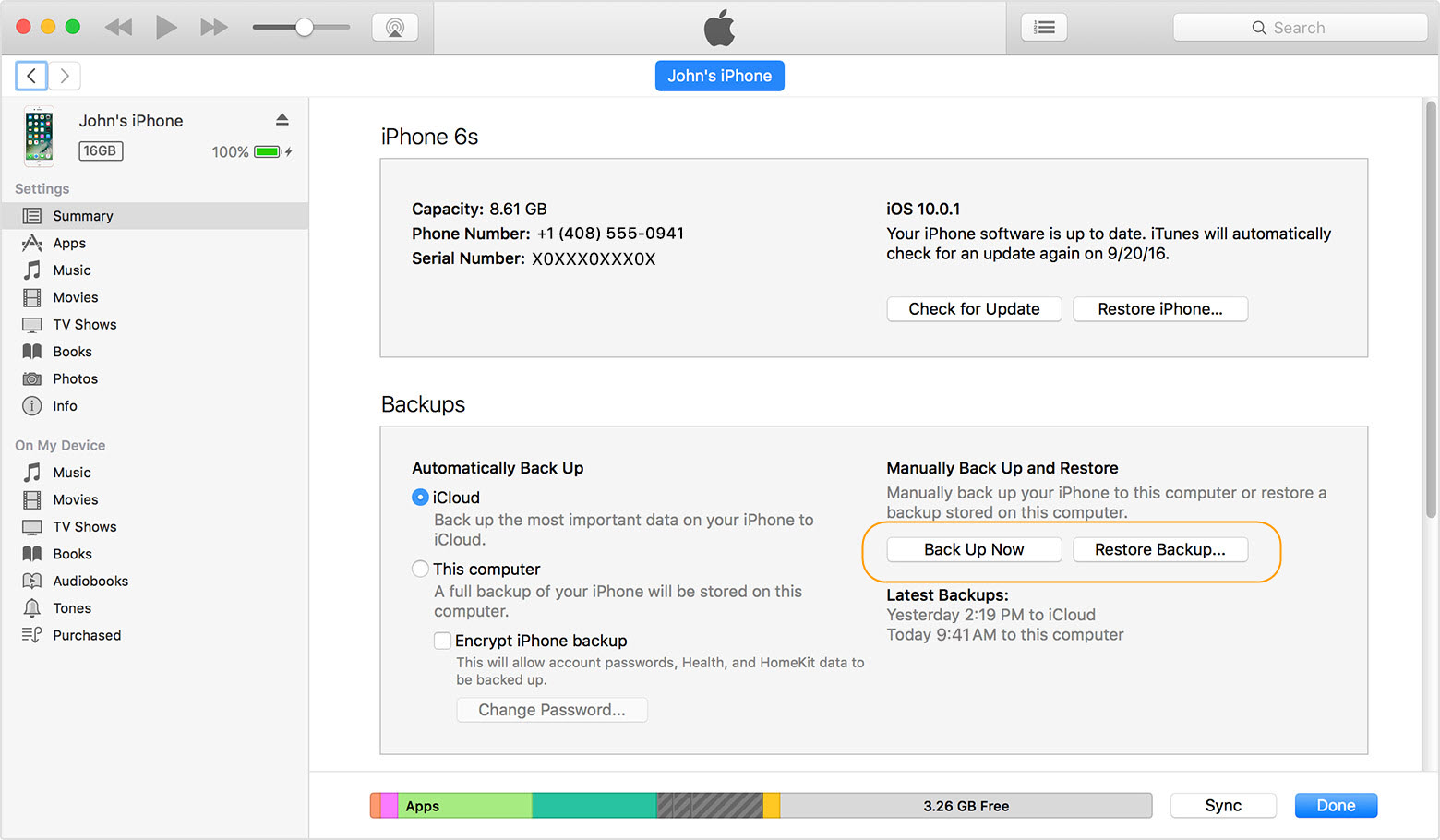
Step 1: Connect your iPhone to a PC.
Step 2: Make a quick launch of iTunes and go to File menu, select “Devices”.
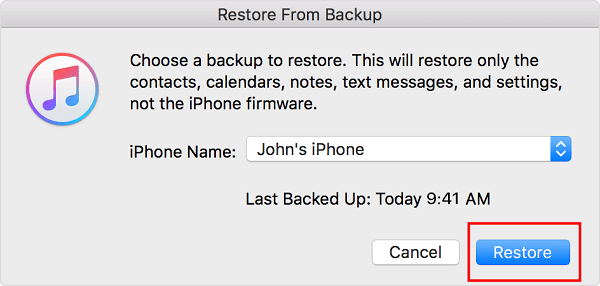
Step 3: Choose “Restore Backup”.
Step 4: Pick a recent backup on the basis of size and date, and click on “Restore”.
After all these steps, you now have your iPhone restored via iTunes, and this is also very useful also after reset.If you ever lost or accidentally deleted data from your iOS device, you can use the professional Gihosoft iPhone Data Recovery software to retrieve important data from iPhone, iPad or iPod Touch even without backup.
Jihosoft iPhone Backup Extractor Extract and recover all types of data from iPhone backup files, such as camera roll photos, videos, SMS, contacts, reminders, WhatsApp, and etc.


No comments:
Post a Comment