Tuesday, 26 February 2019

iOS 12/11.2/11.1 Camera Freezing on iPhone? How to Fix


As reliable as the iPhone camera is, it is not without its own shortcomings. There have been a lot of problems with the iPhone camera as new versions of iOS have been released although Apple has promptly fixed any camera bugs with a new iOS update. But now iOS 12/11.4/11.3/11.2 and 11.1 users are reporting that the camera is freezing at odd times.

If this is you, you’ve come to the right place. Here, we will attempt to offer a number of solutions to fix an iPhone camera that is freezing.
Some Basic Solutions to Fix Camera App Freezing on iPhone

The following are just some simple steps you can take to both help diagnose the problem and fix it.


Close the camera app for a few seconds before reopening it again.


Check that you have adequate storage on the device for new photos.


If you don’t, delete some photos to make room for new ones.


Try switching from the front to back camera to see if only one of the cameras has a problem. If only one is freezing, it may be a hardware problem and you may need to seek technical assistance to get it fixed. If they are both freezing, it may be a software problem.
More Choices to Fix the Issue

If the above solutions do nothing to fix the problem, try the following solutions to see if any of them can fix the issue.


Tip 1. Force Reboot the iPhone


Tip 2. Close the Camera App and Open it Up Again


Tip 3. Update the Software to the Latest Version


Tip 4. Clear RAM on your Device


Tip 5. Clear iPhone Cache


Tip 6. Repair this Bug with iMyFone iOS System Recovery (iOS 12 supported)


Tip 7. Repair Your iPhone with Apple
Tip 1. Force Reboot the iPhone

A force-reboot is a great way to fix some minor problems with your iPhone and it may work here as well. Here’s how to do it.

Step 1: Press and hold the Sleep/Wake or Power button until the “Slide to Power Off” slider appears.

Step 2: Slide to turn off the iPhone.

Step 3: Wait at least 30 seconds and press and hold the power button again until you see the Apple Logo and the device restarts.
Tip 2. Close the Camera App and Open it Up Again

Closing and re-opening the camera app can also easily fix the camera app’s freezing issue. Here’s how to do it. Sponsor ads:10 Best Two Player Games for iPhone and iPad to play Challenges with Your Friends

Step 1: Double-tap on the home button to open the recently used apps.

Step 2: Swipe up from the bottom to close the Camera app.

Step 3: Wait a few seconds and re-open the camera app.


Tip 3. Update the Software to the Latest Version

An outdated iOS can cause all sorts of problems with your device. Therefore, if you think that you may not be running the latest version of iOS, take a moment to update it and see if the issue is fixed.

Step 1: Open the Settings app on your device and then tap “General.”

Step 2: Tap “Software Update” and if there is an update tap “Download and install”.

Once the update is complete, try using the camera again to see if the problem has been fixed.


Tip 4. Clear RAM on your Device

Follow these simple steps to clear the RAM on your device.

Step 1: Press and hold the Power button until you see the “Slide to Power Off” Slider.

Step 2: Remove your finger from the power button but keep pressing the Home button.

Step 3: If you get to the home screen in a few seconds, you will have successfully cleared the RAM on your device.
Tip 5. Clear iPhone Cache

Clearing cache on your iPhone is also one of the ways to fix this issue. Here’s how.

Step 1: Go to Settings > General > Storage & iCloud.

Step 2: Tap “Manage Storage.”

Step 3: Tap on any item under “Documents & Data” and slide it to the left. Tap “Delete.”

Step 4: Ta “Edit” and then “Delete” everything.


Tip 6. Repair this Bug with iMyFone iOS System Recovery (iOS 12 supported)

If all the above solutions fail to fix the problem, you may want to consider using a program that is designed to fix iOS system issues including a device that is stuck in recovery mode, the Apple Logo or when certain features on the device are not functioning normally.

This tool is iMyFone iOS System Recovery and it comes with two-modes that can be used to fix the simplest or the most problematic issues with your device. Its standard mode ensures that you won’t lose any data when fixing the device and you can also use it to exit recovery mode in a single click.Sponsor ads:Download Game of Thrones Season 7 Episode 4 Subtitles?
Must Read:If you lost data after you updated to a new iPhone, you can always use Gihosoft iPhone Data Recovery to get the data back from the old iPhone or backup.

Gihosoft Free iPhone Data Recovery:iphonerecovery.com

If you use android phones, please choose Gihosoft Android Data Recovery
Sponsor ads:10 Best Two Player Games for iPhone and iPad to play Challenges with Your Friends

Wednesday, 20 February 2019

How to Export Safari Bookmarks from iPhone to Computer 2019?


1 Transfer Safari Bookmarks from iPhone to PC/Mac via iCloud

The first method you can use is to leverage on iCloud. With the service of iCloud, exporting bookmark in Safari iPhone is easy. Just follow the steps below. And the first is to set up iCloud on your iPhone.


Enable iCloud syncing for Safari on your iPhone and PC/Mac.


From your device, go to Settings and enable it.


Your Safari bookmarks will start being uploaded to iCloud.


Now you have your iPhone bookmarks in iCloud and you can start exporting them to your computer. We will discuss the next steps for Mac and Windows users separately.
For Mac


Go to System Preferences → iCloud and make sure you have a check mark in Safari checkbox.


Launch Safari on Mac and open File → Export Bookmarks… from the Menu Bar.


Then choose a place to save the Safari bookmarks and click on Save button.


All your Safari bookmars on iPhone are exported on your Mac with the HTML format.


For Windows


Download iCloud for Windows, launch and log in your iCloud account.


Put a check mark in the Bookmarks checkbox


iCloud will sync bookmarks with IE browser. You can change this to other browsers by clicking Options… button.


Click on the Apply button from the main iCloud dashboard to save your changes.


You may consider this method to export Safari bookmarks to your Mac/PC from iPhone even it is a little complicated.


2 Export Bookmarks from iPhone to Computer by Syncing to Browsers

Another good way to export your Safari bookmarks from iPhone to computer is to sync them to the browsers on your computer. How may you do this? Follow the steps below.


Use a USB cable to connect your iPhone to PC.


Navigate to iTunes 11 and open it.


Tap the iPhone button, and select your iPhone's name in the Devices section.


Move over to the Info tab and scroll to locate Other section.


If you see the Bookmarks line in the Other section showing: Your bookmarks are being synced with your iPhone over the air from iCloud. Then, turn off iCloud's Safari sync on your phone.


Continue to Sync Bookmarks With and check.


Choose a Web browser from the menu - preferably Internet Explorer.


Leave the Bookmarks box unchecked.


Click on Apply and wait until the end of the syncing. If you have previously selected Internet Explorer, then open the browser to see your iPhone's bookmarks under favorite list.


That is it. However, if you did not use Internet Explorer, you may need to download and open Internet Explorer and copy the bookmarks from there to your preferred browsers.

Sponsor ads:

Gihosoft Free iPhone Data Recovery:iphonerecovery.com

Free iPhone Data Recovery Software for Windows/Mac

Recover up to 12+ types of files, including contacts, SMS, photos, WhatsApp, Viber, notes, etc.

Restore lost data from iOS devices directly or from iTunes and iCloud backup

Recover iPhone data lost due to iOS upgrade/jailbreak, accidental deletion, device lost or broken

Support all the latest iPhone, iPad and iPod Touch

Both Free and Pro version.

If you lost data after you updated to a new iPhone, you can always use Gihosoft iPhone Data Recovery to get the data back from the old iPhone or backup.

Top 10 Best FRP Bypass Tools to Bypass Google Account on Android Device 2019

Worth reading:download youtube 1080p

If you use android phones, please choose Gihosoft Android Data Recovery

Jihosoft Android Data Recovery: the best Android Data Recovery software for Windows and Mac to recover deleted contacts, messages, photos, videos, WhatsApp and etc from Android

Tuesday, 29 January 2019

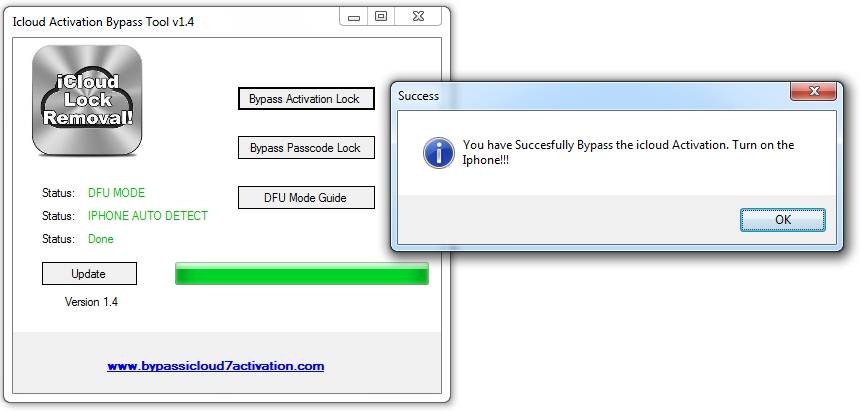
What's iCloud Activation Bypass Tool v1.4?


What's iCloud Activation Bypass Tool v1.4?

The iCloud Activation Bypass Tool v1.4 is a tool that’s used to bypass iCloud account verification process and unlocking an iCloud locked device. Hence, is simple words, iCloud Activation Bypass Tool v1.4 is a tool that helps you to remove the iCloud account from an iOS device without a password.

In reality, the iCloud Activation Bypass Tool v1.4 doesn’t bypass iCloud activation lock but only bypasses iCloud account from an activated iOS device. Therefore, if what you want to remove an iCloud account from your iPhone, then you can use iCloud Activation Bypass Tool v1.4, but if you’re having Activation Lock on your iPhone, this tool will be useless to you.


Here is where and how to download iCloud Activation Bypass Tool v1.4:

Step 1. Go to http://icloud-bypass.net/ to download iCloud Activation Tool v1.4.

Step 2. Extract the.Zip File and run the .exe file.

Step 3. Follow all the instructions that are given on your computer screen.

Step 4. Now, you can successfully enjoy iCloud Bypass Activation Tool v1.4.

However, based on fact that iCloud Activation Bypass Tool v1.4 can only remove the iCloud account from an activated iPhone but cannot remove Activation Lock from iPhone, it is evident that the software is ambiguously named, and can be termed deceptive.

Besides, though some websites recommend this tool to bypass iCloud account, it’s very hard to find the place to download the tool. The download link given above doesn’t 100% ensure that you can download the program successfully. What’s worse, there is no other way to download this tool anywhere online.Sponsor ads:

Gihosoft Free iPhone Data Recovery:iphonerecovery.com

Free iPhone Data Recovery Software for Windows/Mac

Recover up to 12+ types of files, including contacts, SMS, photos, WhatsApp, Viber, notes, etc.

Restore lost data from iOS devices directly or from iTunes and iCloud backup

Recover iPhone data lost due to iOS upgrade/jailbreak, accidental deletion, device lost or broken

Support all the latest iPhone, iPad and iPod Touch

Both Free and Pro version.

If you lost data after you updated to a new iPhone, you can always use Gihosoft iPhone Data Recovery to get the data back from the old iPhone or backup.

Top 10 Best FRP Bypass Tools to Bypass Google Account on Android Device 2019

Worth reading:download youtube 1080p

Jihosoft Android Data Recovery: the best Android Data Recovery software for Windows and Mac to recover deleted contacts, messages, photos, videos, WhatsApp and etc from Android

If you use android phones, please choose Gihosoft Android Data Recovery

Wednesday, 23 January 2019

2019 How to Use iPhone Camera LED Flash as Notification Light


You can enable LED Flash alerts, the accessibility feature, on your iPhone to avoid missing the calls and the notifications. While the accessibility feature is meant for the hearing impaired, it can be useful if you keep your iPhone in silent mode.

The accessibility feature essentially makes use of your iPhone’s rear camera’s LED flash as Notification Light.
How to Use iPhone Camera LED Flash as Notification Light

Here are the steps to use iPhone’s camera LED flash as Notification light while in silent mode:

STEP 1: Launch the Settings app.

STEP 2: Navigate to General > Accessibility.

STEP 3: Then tap on LED Flash for Alerts under the HEARING section.


STEP 4: Tap on the toggle to enable LED Flash for Alerts.


Tap on the toggle to enable Flash on Silent.

That’s it, you’re now all set. Your iPhone’s camera LED will flash whenever you get calls, SMS or notifications while it is in silent mode. You may also want to keep your iPhone facedown so you never miss the LED flash alerts.

Sponsor ads:

Gihosoft Free iPhone Data Recovery:iphonerecovery.com

Free iPhone Data Recovery Software for Windows/Mac

Recover up to 12+ types of files, including contacts, SMS, photos, WhatsApp, Viber, notes, etc.

Restore lost data from iOS devices directly or from iTunes and iCloud backup

Recover iPhone data lost due to iOS upgrade/jailbreak, accidental deletion, device lost or broken

Support all the latest iPhone, iPad and iPod Touch

Both Free and Pro version.

If you lost data after you updated to a new iPhone, you can always use Gihosoft iPhone Data Recovery to get the data back from the old iPhone or backup.

Top 10 Best FRP Bypass Tools to Bypass Google Account on Android Device 2019

Worth reading:download youtube 1080p

Jihosoft Android Data Recovery: the best Android Data Recovery software for Windows and Mac to recover deleted contacts, messages, photos, videos, WhatsApp and etc from Android


If you use android phones, please choose Gihosoft Android Data Recovery.

Saturday, 1 December 2018

How to Select a Good Credit Card Flash Drive


How to Select a Good Credit Card Flash Drive

Before we proceed on how to select a good credit card flash drive, we would like you to note that there are no special measures in choosing it. Hence, a credit card flash drive should be chosen just like a normal flash drive, but you can also consider the following factors.


Choose a good design of credit card flash drive for convenience.


You should look out for reviews on the durability of a credit card flash drive because the design is sleek, and can easily break if the material is not strong.


Space and tech specifications should be considered before choosing a credit card flash drive so that it can serve the purpose for which you acquired it and offer some level of data protection.
The Most Recommended Credit Card Flash Drive

The following credit card flash drives meet our review criteria and we recommend them for you:
#1. Aneew 32GB Black Credit Bank Card USB Flash Drive

The Aneew 32GB Black Credit Bank Card USB Flash Drive Pen Drive Memory Stick is one of Amazon’s top-selling credit card flash drives. It’s nice looking and high quality, and a good choice for data storage, data backup, and transfer of PC files. It’s also a great gift for friends and family, useful for school works, and useful for storing business and personal files.


Features and details:


Size: 3.3 * 2.0 * 0.1 inches.


Storage capacity: 32GB.


Writing and Reading speed 3MB/s and 10MB/s respectively.


Supported operating systems: Windows 10/8/7/Vista/XP/Me/2000, Mac OS X, and Linus 2.6x.


Amazon current Price: $11.98 USD.
#2. Gadget-Station 16GB Personalized Credit Card Metal Aluminum USB Flash Drive

The Gadget-Station 16GB Personalized Credit Card Flash Drive is a metal designed flash drive that can be customized totally for free, it offers a variety of storage capacity to choose, and is easy to read and write in high speed, backup and transfer files without hassle.


Features and details:


Storage Capacity: 16GB.


Reliability: it’s reliable and secure for file storage, transfer, and backup.


Amazon current Price: $15.99 USD.
#3. Kexin 2GB Bulk Business Credit Card USB Flash Drive

If you need a bulk business credit card flash drive for your promotional campaigns, then you need to go for a design that offers you 20 pieces of credit card flash drives for just $53.99 USD. Kexin 2GB Bulk Business Credit Card Flash Drive offers quantity, durability, and a flat surface card to stick your business logo.


Features and details:


Flat surface for business logos and stockers.


Size: 3.38 * 2.0 * 0.07 inches.


Color option: white.


Operating system: Windows 10/8/7/Vista/XP/Me/2000, macOS, and Linus 2.6.


Quantity and price: 20 flash drives for $53.99 USD.

Sponsor ads:

Gihosoft Free iPhone Data Recovery:https://www.gihosoft.com/iphone-data-recovery-free.html

Gihosoft iPhone Data Recovery Free

Free iPhone Data Recovery Software for Windows/Mac

Recover up to 12+ types of files, including contacts, SMS, photos, WhatsApp, Viber, notes, etc.

Restore lost data from iOS devices directly or from iTunes and iCloud backup

Recover iPhone data lost due to iOS upgrade/jailbreak, accidental deletion, device lost or broken

Support all the latest iPhone, iPad and iPod Touch

Both Free and Pro version.

If you lost data after you updated to a new iPhone, you can always use Gihosoft iPhone Data Recovery to get the data back from the old iPhone or backup.You may also like: iphonerecovery.com

If you use android phones, please choose Gihosoft Android Data Recovery.

With Gihosoft Android Data Recovery, no longer afraid of data loss!


Worth reading:Best youtube downloader online download youtube 1080p

Friday, 24 August 2018

How to Access iMessages Online with Chromebook


How to Access iMessages Online with Chromebook

Lastly, if you’re using a Chromebook and you’re wondering “How can I access my iMessages online?”, you might be shocked. This solution requires a bit of extra work than the others and if you would rather use the iMessage Mac app than iMyFone D-Port, you’ll need a Mac computer available (even if you are on a Windows PC!).

Nonetheless, if you’re curious as to how you can access your iMessages from a Chromebook, follow the guide below.

Step 1: On both your Mac and Windows computers, download the “Chrome Remote Desktop” app which can be found here.

Step 2: It will quickly download and install on both computers and afterwards, click on the “Launch App” button to open it up.

Step 3: Download the installer for “Chrome Remote Desktop Host” on your Mac computer and follow the installation steps to set it up (this is very easy to do, just a little tedious).

Step 4: Once everything is set up and ready to go, you can enter the Mac computer’s host code into the Chrome Remote Desktop app that is on your Chromebook, and a connection will be established.


While more complex than the other methods, it’ll get the job done and it means that as a Chromebook user, you are still able to access your iMessages online.
Alternatives to iMessage Application

Now that you have a better understanding of how to view iMessages online (and how stressful this process can be), it might be worth your time to consider a few of the alternative messaging apps.You may also like:online youtube downloader

Snapchat: Snapchat is a widely used messenger but is primarily designed to send photos and videos to your friends.

WhatsApp: WhatsApp is definitely the most popular alternative to iMessage and in some cases, you might think that it’s better. Your WhatsApp account can be connected to your computer (both Windows and Mac) and you can use the messenger from your computer!

Facebook Messenger: Another popular messenger is the Facebook messenger. The only downside to using this app is that you can only message your Facebook friends.

Kik Messenger: Lastly, the Kik messenger app has grown to be one of the most widely used messaging apps on the market as it allows smartphone users to message each other regardless of whether they are on iOS, Android, or Windows.

iMyFone D-Port is by far the best program to use to check your iMessages online and as you can see by the methods and features that we discussed - it’s definitely an impressive program. Make sure that if you have this need, download the free trial version of iMyFone D-Port and experience what it has to offer for you - let us know in the comments below how these solutions helped!


You may also like:Gihosoft iPhone Data Recovery
Must Read:Gihosoft Free Android Data Recovery
Must Read:Jihosoft iTunes Backup Unlocker
Jihosoft iTunes Backup Extractor free is a powerful tool to recover and extract important data from iPhone, iPad & iPod touch backup on Windows or Mac.
You may also like:
Gihosoft Total Video Converter is a professional all-in-one video tool that enables you to convert videos and audios into various different formats.

Friday, 27 July 2018

How to Fix iTunes Not Accepting Password


How to Fix iTunes Not Accepting Password
Why is iTunes Not Accepting My Password
Some users have been encountering a weird issue recently where they cannot sign into iTunes because iTunes not accepting the password even though the password provided is correct. This problem can occur due to many reasons.

One of the primary reasons is that if your device has the iCloud activation lock enabled, then only providing your iCloud credentials will gain you access to App Store and iTunes.

Apart from this, the problem may just be specific to iTunes if you are able to log in at other locations.

Another reason could be an issue with your internet connection.

Other Solutions for the Issue

Following are some other solutions you can try to fix iTunes not accepting password:
1. Verify That Your Password is Correct

It may be possible that the password you are using to sign into iTunes is incorrect. There are ways to verify that your password is correct. It is recommended that you use one of those ways.

Follow these instructions:

Step 1: Visit https://appleid.apple.com/ in a web browser of your choice.


Step 2: Now sign in using the same Apple ID and password that you use on iTunes.

Step 3: If your password is correct, then your account page will open. And if the password is incorrect, then an error message will appear.
2. Reset iTunes Cache

Some users have reported that resetting iTunes cache has solved iTunes not accepting password. So, it is worth a try. You can reset iTunes cache by visiting the Preferences section of iTunes.

Follow these instructions:

Step 1: Launch iTunes and navigate to Preferences > Advanced.


Step 2: Now find and click the Reset Cache button.

Step 3: After resetting the cache, close iTunes and then reopen it again. The problem should be solved now.
3. Delete the Wrong Feed in iTunes

If you have mistakenly clicked on a premium feed that you don’t have an active subscription for, then your credentials will not work and iTunes will continue asking for a valid username and password. The solution is to delete that feed in iTunes.

Follow these instructions:

Step 1: On iTunes, navigate to your podcast list and find and select the premium feed that you do not want.


Step 2: Now choose the Unsubscribe option. It will be shown at the bottom of the screen.

Step 3: It would also be a good idea to delete the feed. You can use the delete key and then click ‘yes’ to do this.

Step 4: Close iTunes afterwards and then relaunch and sign in. The problem should be solved now.If you lost videos from iOS Camerall Roll which are nowhere to download again, you can use Gihosoft iPhone Data Recovery to get back deleted videos from iOS device including iPhone, iPad and iPod Touch.

Jihosoft iPhone Backup Extractor Extract and recover all types of data from iPhone backup files, such as camera roll photos, videos, SMS, contacts, reminders, WhatsApp, and etc.


Top 7 Ways to Fix WhatsApp Web Not Working

1. Check Web Client’s Server Sometimes the WhatsApp web client’s servers can be down for maintenance or any other reason. When this happens,...