Thursday, 19 September 2019

Top 7 Ways to Fix WhatsApp Web Not Working


1. Check Web Client’s Server

Sometimes the WhatsApp web client’s servers can be down for maintenance or any other reason. When this happens, it will not be possible to access WhatsApp web. Go to https://downdetector.co.uk/problems/whatsapp to check whether the server is down. If it is, you’ll have to wait until it is backed up again before you can use the web client.


2. Check Browser Compatibility

WhatsApp web will also fail to work if you are trying to use it on an incompatible browser. You should therefore check your browser’s compatibility with WhatsApp web before trying to use it. If you are using Chrome, Safari, Edge, Firefox or Opera, then this doesn’t apply to you. Any other browsers including Internet Explorer may have compatibility issues with WhatsApp web.
3. Clear Browser Cookies

Corrupted browser cookies may also prevent WhatsApp web from working as it should. To clear cookies on your browser, use the following simple steps; (we are using Google Chrome as an example, but the process should be relatively the same for all major browsers)

Step 1: Click on the menu button at the top right of the browser’s window.

Step 2: Select “More Tools > Clear Browsing Data”.

Step 3: Ensure that “Cookies and other site data” option is selected and then click on “Clear Data” to clear cookies.


4. Check for Browser Updates

Updating your browser is one of the best ways to ensure that the browser is working correctly. To update your browser, follow these simple steps;

Step 1: Open Google Chrome and then click on the menu button (three dots) at the top right corner.

Step 2: Click on “Help” and in the options that appear, click on “About Google Chrome”.

Step 3: You should see details about the version of Chrome you are running. Chrome will download automatically if the browser is outdated.


5. Check Internet Connection

You may have difficulties with WhatsApp Web because you don’t have an internet connection. To use WhatsApp web, you must have an active internet connection on your computer, but most people are not aware that your device must also be connected to the internet. Confirm that you have an internet connection on your phone by visiting any webpage on your browser.Also Read:4K Video Downloader
6. Reset Browser Settings

If everything you’ve tried so far doesn’t work, you should try to reset the browser settings. This can eliminate some settings that could be interfering with WhatsApp web. Here’s how to reset browser settings;

Step 1: Open your browser and click on the menu (three dots) at the top right corner.

Step 2: Click on “Settings” and then select “Advanced Tools”.

Step 3: Now click on “Restore Settings to their Original defaults” and then click “Restore Settings”.

Step 4: Click “Reset Settings” to delete cookies and finish the process.


7. Disable Airplane Mode on Device

Because the device’s connectivity is also a factor in the proper function of the WhatsApp web client, you may be able to fix this problem by toggling Airplane mode on and off. Turn on Airplane mode on your device and then wait a few seconds before turning it on again.Also Read:15 Exhentai proxy sites


Bonus for You: Transfer WhatsApp between Devices

Sunday, 28 July 2019

How to Unlock iPhone For Free in the UK


If you have purchased your iPhone recently it is most likely unlocked, and you should be able to use with any SIM. But if you purchased an iPhone a few years back then it could be locked to a carrier in the UK as you bought the device at a subsidized price and signed a two or three-year contract, then here are all the options you have to unlock iPhone in 2019.
How to Unlock iPhone in the UK

There are several methods to unlock the iPhone to use with any carrier SIM in the UK.
Unlock iPhone by Carrier

It is completely legal to unlock your iPhone if you have finished paying for your contract or have purchased your iPhone outright without any subsidies. Most carriers will unlock your iPhone for free if you’ve completed the stipulated contract period or paid the early termination fee (ETF).

The carrier unlock method and the IMEI based unlock are the best options, as they are permanent, persists even after restores, completely official, and doesn’t require a jailbreak or any other hacks. It also works with all iPhone models and all iOS versions.
How to Unlock iPhone on Vodafone

If you’re a postpaid Vodafone customer, you will need to request for a Network Unlock Code (NUC). Vodafone doesn’t charge an admin fee, so it’s free.

If you’re a Pay As You Go customer as well, then you can request for a Network Unlock Code for free after 30 days.

If you’ve purchased the iPhone from a friend or family member, then the best way is to ask them to unlock it for you. If you’ve purchased it from a reseller, then you will need to ensure that the device belongs to you. For that, you will need to get a Pay As You Go SIM, and use it for at least 30 days.

Here’s the link to get the Network Unlock Code. It can take up to 10 days to get the code. You can then follow a simple guide to unlock your iPhone using the NUC.
How to Unlock iPhone on Three

According to Three’s website, all phones purchased after January 1, 2014, are automatically unlocked for free when you connect to iTunes or Wi-Fi, so you should be able to use it with any carrier SIM.

Even for phones purchased before 2014, you can connect your iPhone to iTunes, and restore your device to unlock it. Alternatively, you can also use this online form.
How to Unlock iPhone on O2

According to O2’s website, all iPhones purchased after August 1, 2018, directly from them are unlocked. If your iPhone is locked, then you can ask them to unlock it at any time for free if you’re a Pay Monthly or Pay As You Go customer. If you’re on Pay Monthly, you’ll still need to complete the minimum term of your contract.

There are various ways to ask O2 to unlock your iPhone:


Fill out our device unlocking form (if we accept your request, we’ll email you within seven days with the details of how to unlock your device).


Go to My O2.


You can contact them via Live Chat or give us a call on 202, free from a Pay Monthly phone, or 4445 from a Pay As You Go phone.
How to Unlock iPhone on EE

EE is the only UK network that charges a fee to unlock the iPhone, but the charges are quite nominal. If you are EE’s postpaid customer and have paid the bills for 6 months, then they will charge £8.99 admin fee to unlock your iPhone.

If you’re EE’s Pay As You Go customer, then will deduct £8.99 admin fee from your credits to unlock your iPhone.

If you’ve bought an iPhone that is locked to EE, then it will be a little tricky to unlock your iPhone as you will need the original owner’s name, phone number, and some additional account information.

You can use this link on EE’s website to unlock your device.

If you don’t have the information, then you have no choice but to use third-party unlocking solutions.
Unlock iPhone by IMEI

If you learn that you’re not eligible for an official carrier unlock or your iPhone is locked with another carrier not mentioned above, then you can opt for an IMEI unlock. It works just like the official carrier unlock, which means it’s permanent, works with all models and OS versions, persists even after a restore, and doesn’t require you a jailbreak or any other hacks.

There are a lot of IMEI unlock providers, but it’s best to go with trusted providers like Express Unlocks, as there are a lot of scammers out there. The price to unlock iPhone varies based on your carrier. They support all iPhone models such as iPhone XS, iPhone XS Max, iPhone XR, iPhone X, iPhone 8, iPhone 8 Plus, iPhone 7, iPhone 7 Plus, iPhone 6s, iPhone 6s Plus, iPhone 6, iPhone 6 Plus, iPhone SE, iPhone 5s, iPhone 5C, iPhone 5, iPhone 4S and iPhone 4.

Hope this guide has helped you in unlocking your iPhone in the UK to use any carrier SIM. If you’re in the U.S., then you can check out our article for the steps on how to unlock your iPhone on AT&T, Verizon, T-Mobile, and Sprint.

Let us know it goes and please feel to share your experience in the comments below.

Disclosure: This post contains affiliate links which mean that we may receive a commission if you click a link and make a purchase. Thank you for your support!

Also Read:book torrent sites

Also Read:Virtual Girlfriend Apps

Also Read:icefilms alternative

Tuesday, 26 February 2019

iOS 12/11.2/11.1 Camera Freezing on iPhone? How to Fix


As reliable as the iPhone camera is, it is not without its own shortcomings. There have been a lot of problems with the iPhone camera as new versions of iOS have been released although Apple has promptly fixed any camera bugs with a new iOS update. But now iOS 12/11.4/11.3/11.2 and 11.1 users are reporting that the camera is freezing at odd times.

If this is you, you’ve come to the right place. Here, we will attempt to offer a number of solutions to fix an iPhone camera that is freezing.
Some Basic Solutions to Fix Camera App Freezing on iPhone

The following are just some simple steps you can take to both help diagnose the problem and fix it.


Close the camera app for a few seconds before reopening it again.


Check that you have adequate storage on the device for new photos.


If you don’t, delete some photos to make room for new ones.


Try switching from the front to back camera to see if only one of the cameras has a problem. If only one is freezing, it may be a hardware problem and you may need to seek technical assistance to get it fixed. If they are both freezing, it may be a software problem.
More Choices to Fix the Issue

If the above solutions do nothing to fix the problem, try the following solutions to see if any of them can fix the issue.


Tip 1. Force Reboot the iPhone


Tip 2. Close the Camera App and Open it Up Again


Tip 3. Update the Software to the Latest Version


Tip 4. Clear RAM on your Device


Tip 5. Clear iPhone Cache


Tip 6. Repair this Bug with iMyFone iOS System Recovery (iOS 12 supported)


Tip 7. Repair Your iPhone with Apple
Tip 1. Force Reboot the iPhone

A force-reboot is a great way to fix some minor problems with your iPhone and it may work here as well. Here’s how to do it.

Step 1: Press and hold the Sleep/Wake or Power button until the “Slide to Power Off” slider appears.

Step 2: Slide to turn off the iPhone.

Step 3: Wait at least 30 seconds and press and hold the power button again until you see the Apple Logo and the device restarts.
Tip 2. Close the Camera App and Open it Up Again

Closing and re-opening the camera app can also easily fix the camera app’s freezing issue. Here’s how to do it. Sponsor ads:10 Best Two Player Games for iPhone and iPad to play Challenges with Your Friends

Step 1: Double-tap on the home button to open the recently used apps.

Step 2: Swipe up from the bottom to close the Camera app.

Step 3: Wait a few seconds and re-open the camera app.


Tip 3. Update the Software to the Latest Version

An outdated iOS can cause all sorts of problems with your device. Therefore, if you think that you may not be running the latest version of iOS, take a moment to update it and see if the issue is fixed.

Step 1: Open the Settings app on your device and then tap “General.”

Step 2: Tap “Software Update” and if there is an update tap “Download and install”.

Once the update is complete, try using the camera again to see if the problem has been fixed.


Tip 4. Clear RAM on your Device

Follow these simple steps to clear the RAM on your device.

Step 1: Press and hold the Power button until you see the “Slide to Power Off” Slider.

Step 2: Remove your finger from the power button but keep pressing the Home button.

Step 3: If you get to the home screen in a few seconds, you will have successfully cleared the RAM on your device.
Tip 5. Clear iPhone Cache

Clearing cache on your iPhone is also one of the ways to fix this issue. Here’s how.

Step 1: Go to Settings > General > Storage & iCloud.

Step 2: Tap “Manage Storage.”

Step 3: Tap on any item under “Documents & Data” and slide it to the left. Tap “Delete.”

Step 4: Ta “Edit” and then “Delete” everything.


Tip 6. Repair this Bug with iMyFone iOS System Recovery (iOS 12 supported)

If all the above solutions fail to fix the problem, you may want to consider using a program that is designed to fix iOS system issues including a device that is stuck in recovery mode, the Apple Logo or when certain features on the device are not functioning normally.

This tool is iMyFone iOS System Recovery and it comes with two-modes that can be used to fix the simplest or the most problematic issues with your device. Its standard mode ensures that you won’t lose any data when fixing the device and you can also use it to exit recovery mode in a single click.Sponsor ads:Download Game of Thrones Season 7 Episode 4 Subtitles?
Must Read:If you lost data after you updated to a new iPhone, you can always use Gihosoft iPhone Data Recovery to get the data back from the old iPhone or backup.

Gihosoft Free iPhone Data Recovery:iphonerecovery.com

If you use android phones, please choose Gihosoft Android Data Recovery
Sponsor ads:10 Best Two Player Games for iPhone and iPad to play Challenges with Your Friends

Wednesday, 20 February 2019

How to Export Safari Bookmarks from iPhone to Computer 2019?


1 Transfer Safari Bookmarks from iPhone to PC/Mac via iCloud

The first method you can use is to leverage on iCloud. With the service of iCloud, exporting bookmark in Safari iPhone is easy. Just follow the steps below. And the first is to set up iCloud on your iPhone.


Enable iCloud syncing for Safari on your iPhone and PC/Mac.


From your device, go to Settings and enable it.


Your Safari bookmarks will start being uploaded to iCloud.


Now you have your iPhone bookmarks in iCloud and you can start exporting them to your computer. We will discuss the next steps for Mac and Windows users separately.
For Mac


Go to System Preferences → iCloud and make sure you have a check mark in Safari checkbox.


Launch Safari on Mac and open File → Export Bookmarks… from the Menu Bar.


Then choose a place to save the Safari bookmarks and click on Save button.


All your Safari bookmars on iPhone are exported on your Mac with the HTML format.


For Windows


Download iCloud for Windows, launch and log in your iCloud account.


Put a check mark in the Bookmarks checkbox


iCloud will sync bookmarks with IE browser. You can change this to other browsers by clicking Options… button.


Click on the Apply button from the main iCloud dashboard to save your changes.


You may consider this method to export Safari bookmarks to your Mac/PC from iPhone even it is a little complicated.


2 Export Bookmarks from iPhone to Computer by Syncing to Browsers

Another good way to export your Safari bookmarks from iPhone to computer is to sync them to the browsers on your computer. How may you do this? Follow the steps below.


Use a USB cable to connect your iPhone to PC.


Navigate to iTunes 11 and open it.


Tap the iPhone button, and select your iPhone's name in the Devices section.


Move over to the Info tab and scroll to locate Other section.


If you see the Bookmarks line in the Other section showing: Your bookmarks are being synced with your iPhone over the air from iCloud. Then, turn off iCloud's Safari sync on your phone.


Continue to Sync Bookmarks With and check.


Choose a Web browser from the menu - preferably Internet Explorer.


Leave the Bookmarks box unchecked.


Click on Apply and wait until the end of the syncing. If you have previously selected Internet Explorer, then open the browser to see your iPhone's bookmarks under favorite list.


That is it. However, if you did not use Internet Explorer, you may need to download and open Internet Explorer and copy the bookmarks from there to your preferred browsers.

Sponsor ads:

Gihosoft Free iPhone Data Recovery:iphonerecovery.com

Free iPhone Data Recovery Software for Windows/Mac

Recover up to 12+ types of files, including contacts, SMS, photos, WhatsApp, Viber, notes, etc.

Restore lost data from iOS devices directly or from iTunes and iCloud backup

Recover iPhone data lost due to iOS upgrade/jailbreak, accidental deletion, device lost or broken

Support all the latest iPhone, iPad and iPod Touch

Both Free and Pro version.

If you lost data after you updated to a new iPhone, you can always use Gihosoft iPhone Data Recovery to get the data back from the old iPhone or backup.

Top 10 Best FRP Bypass Tools to Bypass Google Account on Android Device 2019

Worth reading:download youtube 1080p

If you use android phones, please choose Gihosoft Android Data Recovery

Jihosoft Android Data Recovery: the best Android Data Recovery software for Windows and Mac to recover deleted contacts, messages, photos, videos, WhatsApp and etc from Android

Tuesday, 29 January 2019

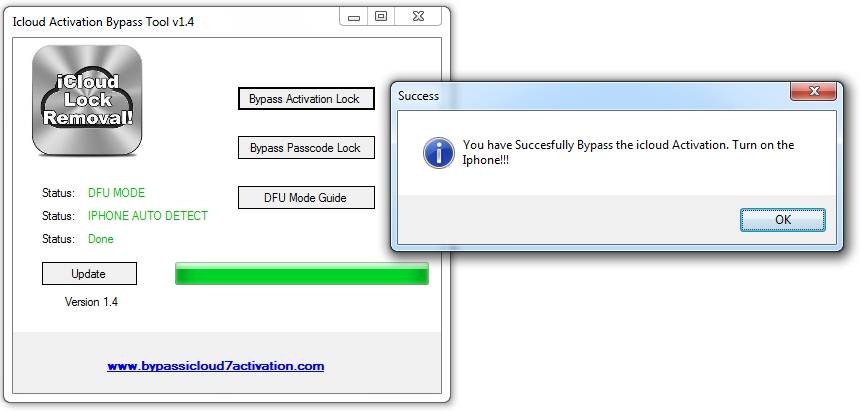
What's iCloud Activation Bypass Tool v1.4?


What's iCloud Activation Bypass Tool v1.4?

The iCloud Activation Bypass Tool v1.4 is a tool that’s used to bypass iCloud account verification process and unlocking an iCloud locked device. Hence, is simple words, iCloud Activation Bypass Tool v1.4 is a tool that helps you to remove the iCloud account from an iOS device without a password.

In reality, the iCloud Activation Bypass Tool v1.4 doesn’t bypass iCloud activation lock but only bypasses iCloud account from an activated iOS device. Therefore, if what you want to remove an iCloud account from your iPhone, then you can use iCloud Activation Bypass Tool v1.4, but if you’re having Activation Lock on your iPhone, this tool will be useless to you.


Here is where and how to download iCloud Activation Bypass Tool v1.4:

Step 1. Go to http://icloud-bypass.net/ to download iCloud Activation Tool v1.4.

Step 2. Extract the.Zip File and run the .exe file.

Step 3. Follow all the instructions that are given on your computer screen.

Step 4. Now, you can successfully enjoy iCloud Bypass Activation Tool v1.4.

However, based on fact that iCloud Activation Bypass Tool v1.4 can only remove the iCloud account from an activated iPhone but cannot remove Activation Lock from iPhone, it is evident that the software is ambiguously named, and can be termed deceptive.

Besides, though some websites recommend this tool to bypass iCloud account, it’s very hard to find the place to download the tool. The download link given above doesn’t 100% ensure that you can download the program successfully. What’s worse, there is no other way to download this tool anywhere online.Sponsor ads:

Gihosoft Free iPhone Data Recovery:iphonerecovery.com

Free iPhone Data Recovery Software for Windows/Mac

Recover up to 12+ types of files, including contacts, SMS, photos, WhatsApp, Viber, notes, etc.

Restore lost data from iOS devices directly or from iTunes and iCloud backup

Recover iPhone data lost due to iOS upgrade/jailbreak, accidental deletion, device lost or broken

Support all the latest iPhone, iPad and iPod Touch

Both Free and Pro version.

If you lost data after you updated to a new iPhone, you can always use Gihosoft iPhone Data Recovery to get the data back from the old iPhone or backup.

Top 10 Best FRP Bypass Tools to Bypass Google Account on Android Device 2019

Worth reading:download youtube 1080p

Jihosoft Android Data Recovery: the best Android Data Recovery software for Windows and Mac to recover deleted contacts, messages, photos, videos, WhatsApp and etc from Android

If you use android phones, please choose Gihosoft Android Data Recovery

Wednesday, 23 January 2019

2019 How to Use iPhone Camera LED Flash as Notification Light


You can enable LED Flash alerts, the accessibility feature, on your iPhone to avoid missing the calls and the notifications. While the accessibility feature is meant for the hearing impaired, it can be useful if you keep your iPhone in silent mode.

The accessibility feature essentially makes use of your iPhone’s rear camera’s LED flash as Notification Light.
How to Use iPhone Camera LED Flash as Notification Light

Here are the steps to use iPhone’s camera LED flash as Notification light while in silent mode:

STEP 1: Launch the Settings app.

STEP 2: Navigate to General > Accessibility.

STEP 3: Then tap on LED Flash for Alerts under the HEARING section.


STEP 4: Tap on the toggle to enable LED Flash for Alerts.


Tap on the toggle to enable Flash on Silent.

That’s it, you’re now all set. Your iPhone’s camera LED will flash whenever you get calls, SMS or notifications while it is in silent mode. You may also want to keep your iPhone facedown so you never miss the LED flash alerts.

Sponsor ads:

Gihosoft Free iPhone Data Recovery:iphonerecovery.com

Free iPhone Data Recovery Software for Windows/Mac

Recover up to 12+ types of files, including contacts, SMS, photos, WhatsApp, Viber, notes, etc.

Restore lost data from iOS devices directly or from iTunes and iCloud backup

Recover iPhone data lost due to iOS upgrade/jailbreak, accidental deletion, device lost or broken

Support all the latest iPhone, iPad and iPod Touch

Both Free and Pro version.

If you lost data after you updated to a new iPhone, you can always use Gihosoft iPhone Data Recovery to get the data back from the old iPhone or backup.

Top 10 Best FRP Bypass Tools to Bypass Google Account on Android Device 2019

Worth reading:download youtube 1080p

Jihosoft Android Data Recovery: the best Android Data Recovery software for Windows and Mac to recover deleted contacts, messages, photos, videos, WhatsApp and etc from Android


If you use android phones, please choose Gihosoft Android Data Recovery.

Saturday, 1 December 2018

How to Select a Good Credit Card Flash Drive


How to Select a Good Credit Card Flash Drive

Before we proceed on how to select a good credit card flash drive, we would like you to note that there are no special measures in choosing it. Hence, a credit card flash drive should be chosen just like a normal flash drive, but you can also consider the following factors.


Choose a good design of credit card flash drive for convenience.


You should look out for reviews on the durability of a credit card flash drive because the design is sleek, and can easily break if the material is not strong.


Space and tech specifications should be considered before choosing a credit card flash drive so that it can serve the purpose for which you acquired it and offer some level of data protection.
The Most Recommended Credit Card Flash Drive

The following credit card flash drives meet our review criteria and we recommend them for you:
#1. Aneew 32GB Black Credit Bank Card USB Flash Drive

The Aneew 32GB Black Credit Bank Card USB Flash Drive Pen Drive Memory Stick is one of Amazon’s top-selling credit card flash drives. It’s nice looking and high quality, and a good choice for data storage, data backup, and transfer of PC files. It’s also a great gift for friends and family, useful for school works, and useful for storing business and personal files.


Features and details:


Size: 3.3 * 2.0 * 0.1 inches.


Storage capacity: 32GB.


Writing and Reading speed 3MB/s and 10MB/s respectively.


Supported operating systems: Windows 10/8/7/Vista/XP/Me/2000, Mac OS X, and Linus 2.6x.


Amazon current Price: $11.98 USD.
#2. Gadget-Station 16GB Personalized Credit Card Metal Aluminum USB Flash Drive

The Gadget-Station 16GB Personalized Credit Card Flash Drive is a metal designed flash drive that can be customized totally for free, it offers a variety of storage capacity to choose, and is easy to read and write in high speed, backup and transfer files without hassle.


Features and details:


Storage Capacity: 16GB.


Reliability: it’s reliable and secure for file storage, transfer, and backup.


Amazon current Price: $15.99 USD.
#3. Kexin 2GB Bulk Business Credit Card USB Flash Drive

If you need a bulk business credit card flash drive for your promotional campaigns, then you need to go for a design that offers you 20 pieces of credit card flash drives for just $53.99 USD. Kexin 2GB Bulk Business Credit Card Flash Drive offers quantity, durability, and a flat surface card to stick your business logo.


Features and details:


Flat surface for business logos and stockers.


Size: 3.38 * 2.0 * 0.07 inches.


Color option: white.


Operating system: Windows 10/8/7/Vista/XP/Me/2000, macOS, and Linus 2.6.


Quantity and price: 20 flash drives for $53.99 USD.

Sponsor ads:

Gihosoft Free iPhone Data Recovery:https://www.gihosoft.com/iphone-data-recovery-free.html

Gihosoft iPhone Data Recovery Free

Free iPhone Data Recovery Software for Windows/Mac

Recover up to 12+ types of files, including contacts, SMS, photos, WhatsApp, Viber, notes, etc.

Restore lost data from iOS devices directly or from iTunes and iCloud backup

Recover iPhone data lost due to iOS upgrade/jailbreak, accidental deletion, device lost or broken

Support all the latest iPhone, iPad and iPod Touch

Both Free and Pro version.

If you lost data after you updated to a new iPhone, you can always use Gihosoft iPhone Data Recovery to get the data back from the old iPhone or backup.You may also like: iphonerecovery.com

If you use android phones, please choose Gihosoft Android Data Recovery.

With Gihosoft Android Data Recovery, no longer afraid of data loss!


Worth reading:Best youtube downloader online download youtube 1080p

Top 7 Ways to Fix WhatsApp Web Not Working

1. Check Web Client’s Server Sometimes the WhatsApp web client’s servers can be down for maintenance or any other reason. When this happens,...